- Level:
- Novice
- Lessons:
- 18 Lessons
Generating Prose with AI
Learn how to use the slash menu to write short instructions that guide the AI in generating your prose.
- Reading Time
- approx. 3 min
In the last lesson, you explored the Write interface and typed your first lines of prose. Have you ever paused during a scene because you weren’t sure what to write next? Or maybe you know what should happen, but you aren’t sure how to write it.
You can ask the AI to write prose directly inside your manuscript. In this lesson, we cover how to start a generation and review your available options.
Key Takeaways
- To write with AI in the manuscript, type / to open the slash menu and select Scene Beat .
- A scene beat is an instruction you write for the AI.
- You can swap prompts or models at any time using the dropdown, including the Tweak and Generate option for full control of any prompt inputs.
What Are Scene Beats?
A scene beat is an instruction you write for the AI. It describes what should happen next in your story, and can cover a short moment in time, or an entire scene. It acts like a direction you might give to a co-writer:
Connor enters the shop and almost trips over Sparky, managing to grab him at the last minute. He remarks that Gwendolyn the baker has been experimenting with new recipes again, and Sparky’s tail wags at the mention of food. They exchange a few lines of dialogue about the upcoming town festival, where Gwendolyn plans to debut her latest creation — a mysterious pastry that has everyone buzzing with curiosity.
The AI reads your beat alongside the context from your Codex and your existing prose. It then generates a new passage based on your instruction. You guide the events in your story. The AI helps with how it’s written.
Writing Your First Scene Beat
- In the manuscript, click into the writing area where you want the AI to generate prose. This could be at the very start of an empty scene, or after some text you’ve already written.
- Type a forward slash, / .
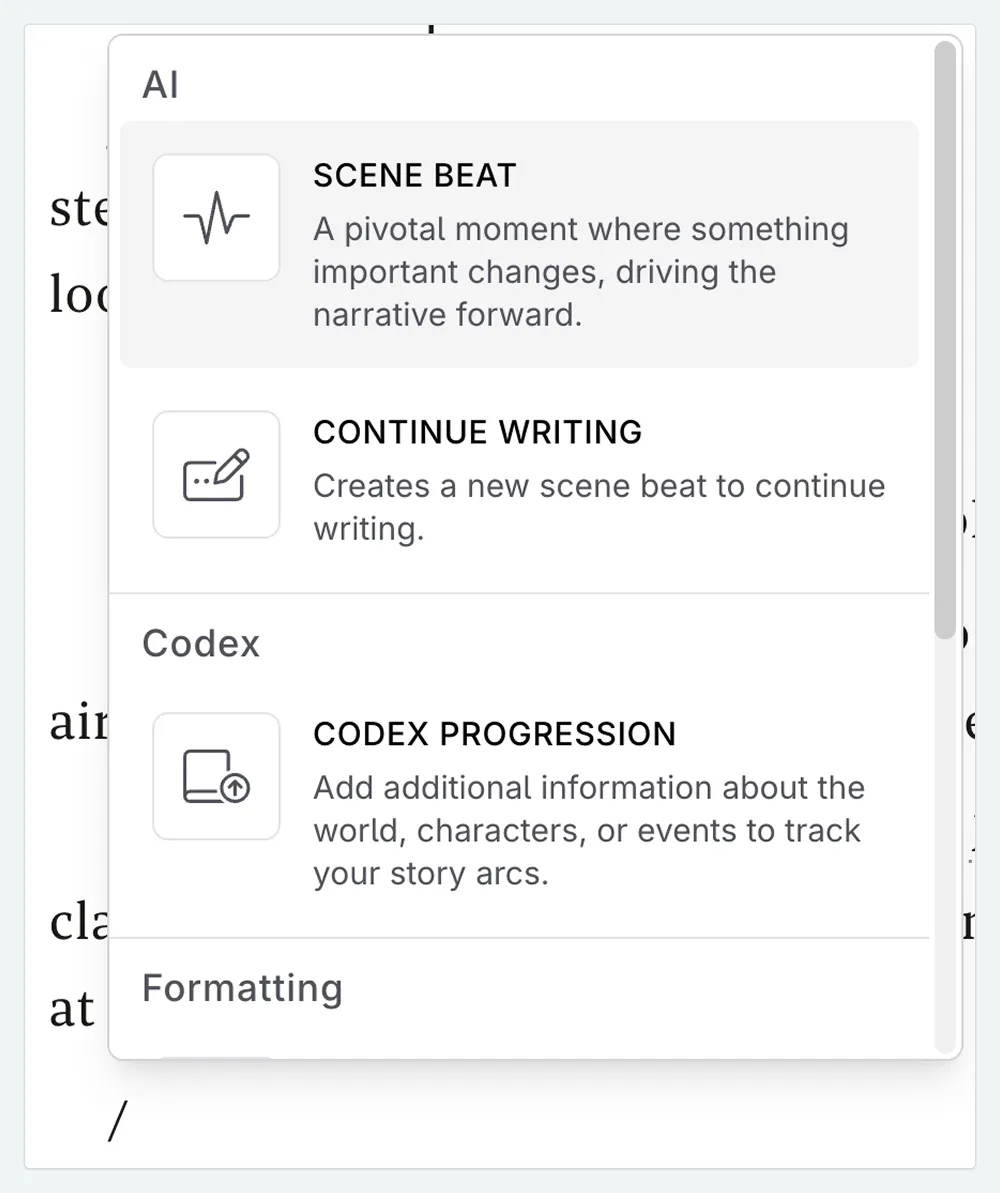
- A small menu appears. Select Scene Beat .
- An inline text box will appear. Type your instruction — describe what should happen next in this part of the scene.
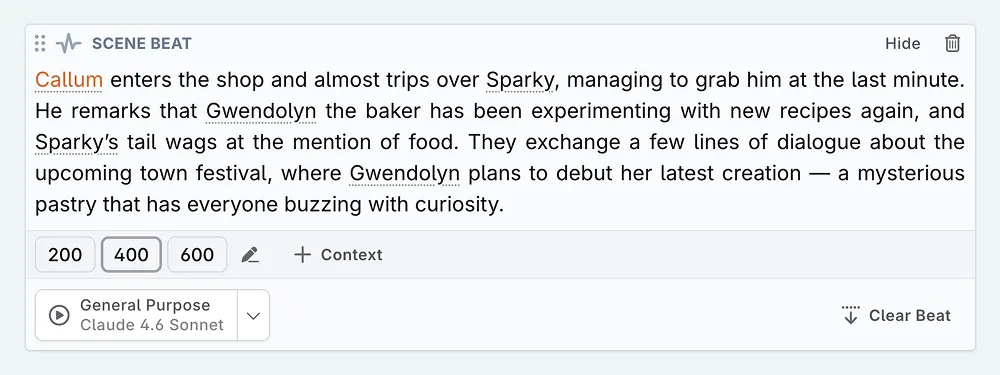
- The general purpose writing prompt gives you options for the length of prose you wish to write. You can select one of the preset values, or click the pen icon to manually choose.
- Click ▶ to send it, or the dropdown arrow to change the model. The AI will begin generating prose.
What Happens After Generation
Once the AI finishes writing, you’ll see the generated text appear in your manuscript with a set of options:
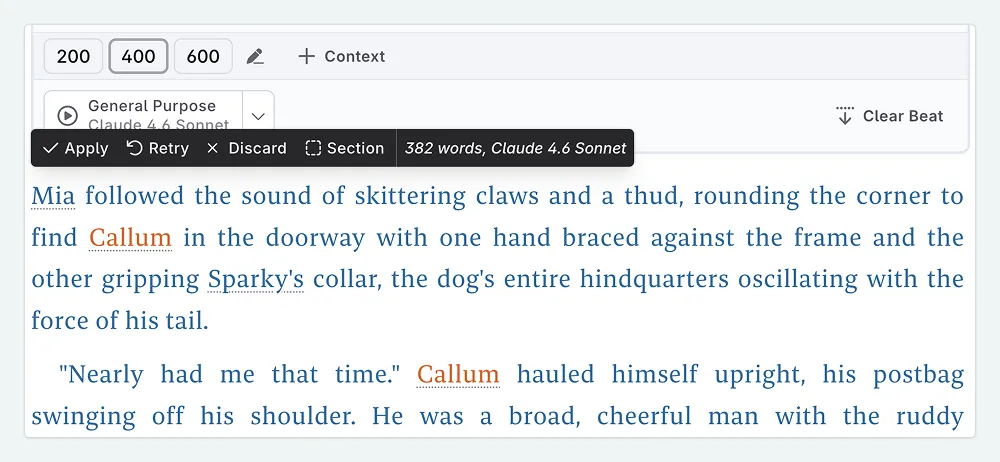
- Apply. You are happy with the text. This accepts it into your manuscript as regular prose.
- Retry. Not quite right? This sends the same instruction again for a fresh attempt. This replaces the previous response. If you want to keep the original, click Apply or Section instead.
- Discard. The text isn’t what you wanted at all. This removes it entirely.
- Section. This accepts the text and places it in a section. This feature helps keep multiple versions side by side.

I rarely use the very first generation without edits. I usually put at least one or two into sections, using different AI models, and then edit it by hand to match my voice.
Changing the Prompt or Model
Just as you can swap AI models in Chat, you can also change them when generating prose. You might want to use a model that’s better suited to prose, or switch to a different prompt for a particular scene.
After writing your scene beat, instead of clicking the ▶ icon, click the dropdown arrow next to it.
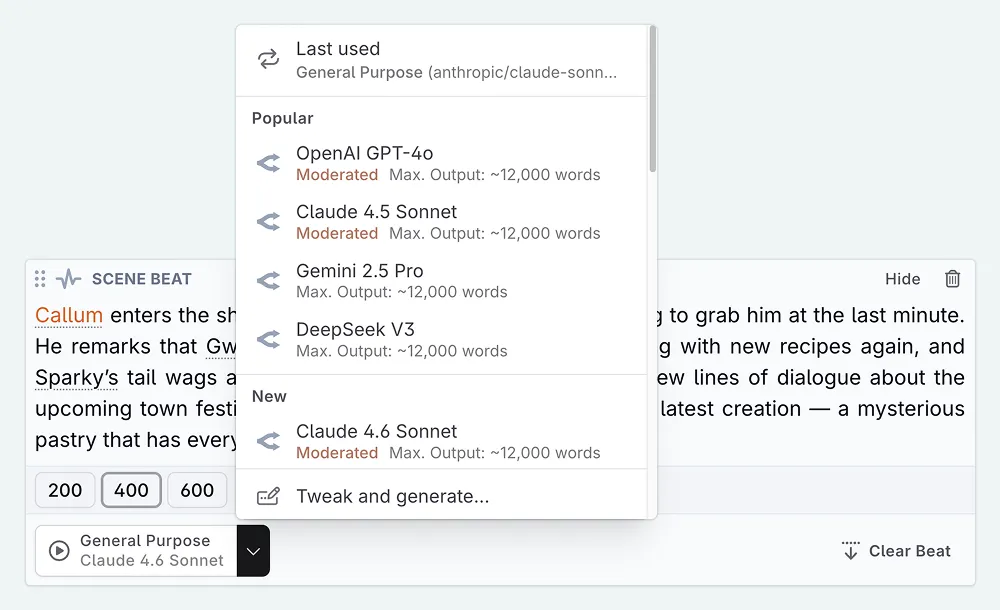
A menu appears with your available prompts. You can either:
- Quick select a prompt and model combination, then click ▶ to send.
- Click Tweak and Generate to see all the prompt’s input options before sending. This gives you full control over every setting before the AI writes anything. You can change models at this point for your current prompt.
If you have not yet set up custom prompts, you will only see the available models for the general purpose scene beat completion prompt.
I sometimes use a different model for dialogue-heavy scenes than I do for descriptive passages. You might find that one model captures your character voices better, while another is stronger at setting a scene. Experiment and see what works for your story!
Closing Thoughts
You now know the mechanics of generating prose in the manuscript. You can type a slash and write a scene beat. Combined with writing by hand, you have two great ways to get words on the page.
How do you write good scene beats for the best results? In the next lesson, we share tips for using AI prose generation effectively.
This lesson was taught by:

Kate
Based in the UK, Kate has been writing since she was young, driven by a burning need to get the vivid tales in her head down on paper… or the computer screen.