- Level:
- Novice
- Lessons:
- 18 Lessons
Scene Summaries and the Writing Loop
Learn why scene summaries matter beyond planning, and how to keep them aligned with your draft.
- Reading Time
- approx. 3 min
When you started planning, you added short scene summaries to the Plan interface. Those notes helped organize your ideas.
Once you start writing prose, those summaries have another job. They help you track the story as it changes, and they help AI use the right background information. In this lesson, you’ll see why current summaries matter and how to update them.
Key Takeaways
- Keeping scene summaries current helps your plan match the draft.
- AI uses earlier scene summaries to inform it of your story when writing prose. Outdated summaries can lead to inconsistencies or invented details.
- You can update summaries yourself or use the Summarize Scene feature.
- Two useful questions can guide a summary: what happened, and what changed?
Why Summaries Still Matter
Stories rarely follow the initial plan exactly. A character may react in an unexpected way, or a new detail may shift the direction of a scene.
If a scene summary still contains the original plan, it can create confusion later. This matters even more if you use AI while drafting. Novelcrafter can use summaries from earlier scenes as background when it helps generate prose. This is how it understands what has already happened in your story.
If Chapter 2 says “Mia visits the market,” but the draft shows her going to the library, later AI output may still refer to the market. That mismatch can carry into later scenes.
Updating Summaries
Updating Summaries Manually
Finished a scene? One easy way to keep your summary current is to update it yourself while you write.
- In Plan: Click the scene summary box on the scene card, then edit the text to match what you wrote.
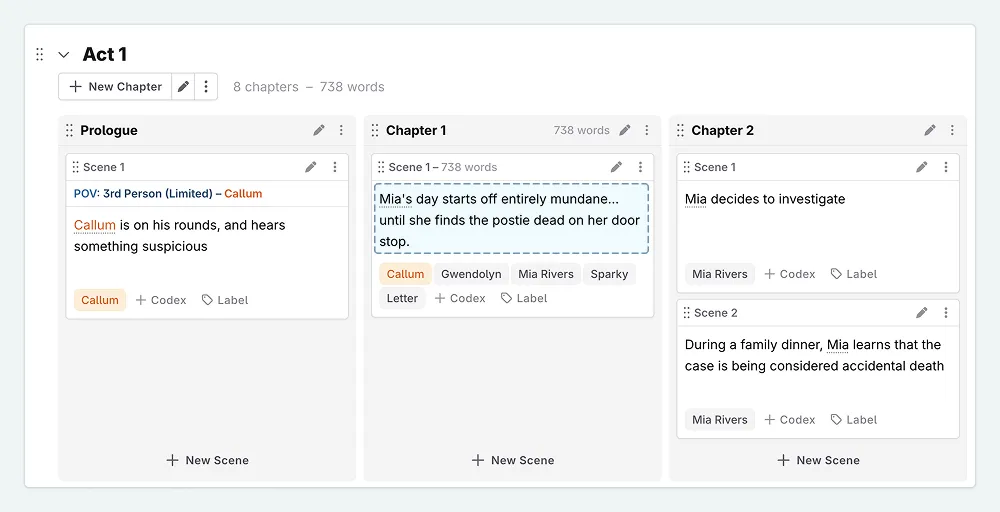
- In Write: Click the scene summary in the scene details panel on the right, then update it there.
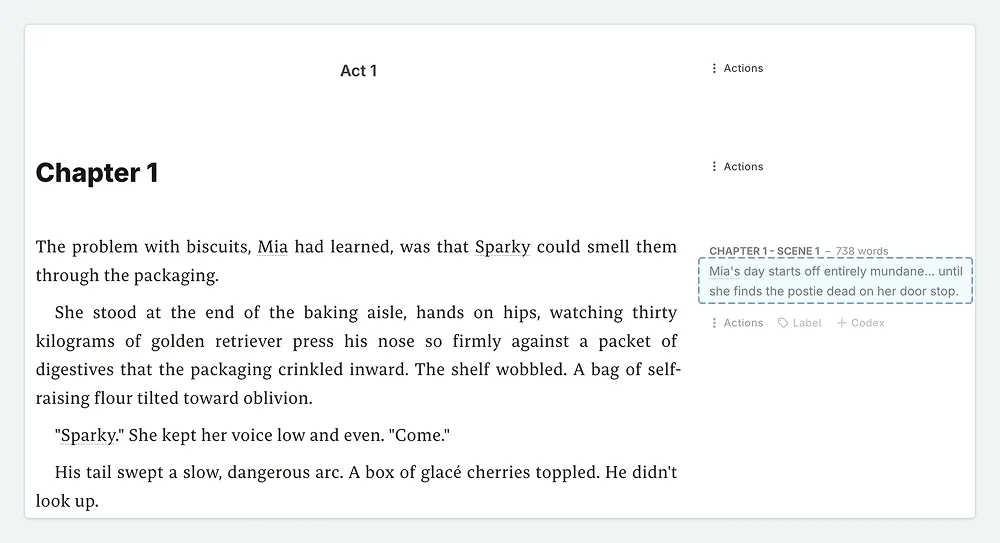
A sentence or two is often enough. Aim for the details that matter later.

I update my summaries as soon as I finish a scene. It only takes a moment, and it saves me from searching through pages of prose later. If a summary would confuse me a month from now, I update it.
Using AI to Summarize a Scene
Novelcrafter includes a Summarize Scene action that can generate a summary from the prose you just wrote.
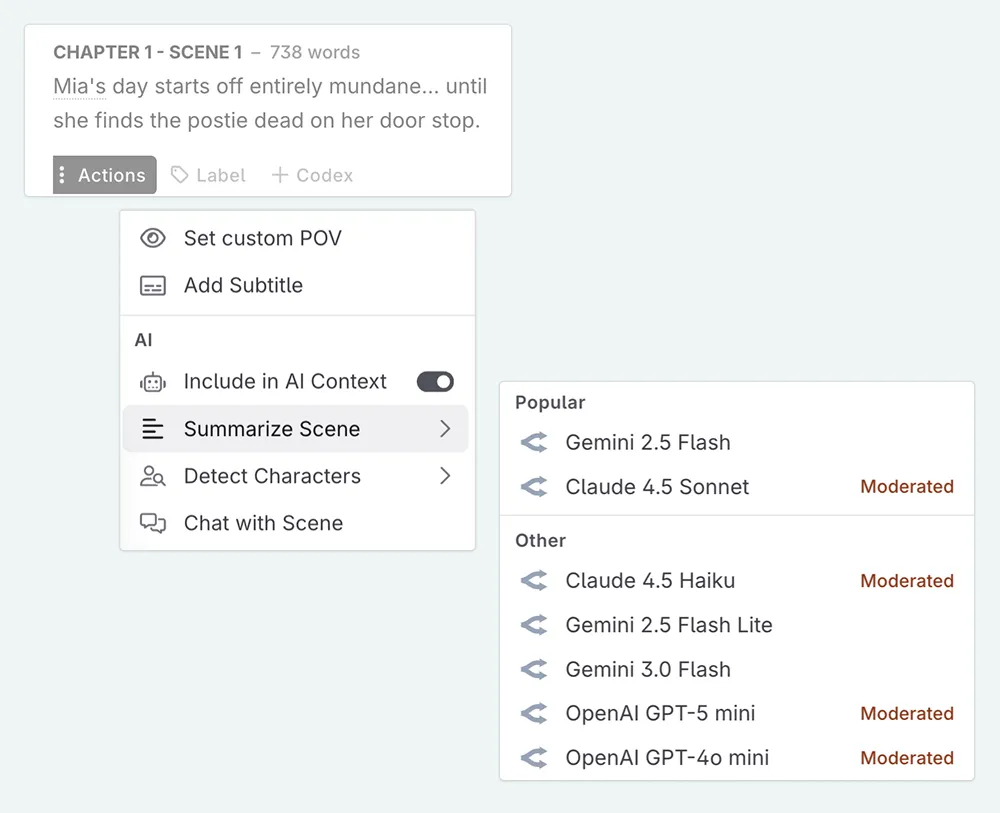
- Click the Actions Menu (the three dots) for the scene you want to summarize.
- Under the AI section, select Summarize Scene .
- Choose your preferred prompt and model. The default prompt aims for a summary of about 80 words.
The generated summary is a solid starting point. You may still want to adjust the wording, add a missing detail, or remove extra information.
I often use Summarize Scene when I draft freely and do not have a summary yet. It is faster for me than writing one from scratch. If a scene already has a summary from the planning stage, I usually revise it myself so I can choose exactly what stays.
How long should a Summary be?
If you are not using AI, length is mostly a personal choice. If the summary helps you remember the scene later, it is doing its job.
If you use AI, summaries from earlier scenes may be added to your next prompt as background. As the story grows, very long summaries can use up too much of that space. That can lead to missing details or invented ones.
The default Summarize Scene prompt aims for about 80 words.
When you write a summary, focus on the details that matter later in the story. Two helpful questions are:
- What happened?
- What changed?
If a character learns something important, makes a decision, or finds a key object, that usually belongs in the summary. Atmosphere and minor dialogue usually do not.
Mia arrives at The Glenford Nook at 7:45am on a Tuesday morning. She unlocks the front door, turns on the lights, puts on a pot of tea, and arranges the new arrivals display. She notices the mail hasn’t arrived. She checks the clock, which reads 8:30am. Old Pete comes in and orders his usual Earl Grey. They chat about the weather. Mia mentions the missing mail and Pete says it is probably nothing.
Mia opens the shop and notices the mail has not arrived, which is unusual. Old Pete dismisses her concern but lets slip that he saw something odd last night.
The second version captures the exact details needed for later scenes: the missing mail and Pete’s comment.
The Writing Loop
With summaries in place, here is the larger pattern you have been building through this course:
- Plan: You wrote scene summaries describing what you intended to write.
- Write: You drafted the scene in prose, by yourself, with AI, or with both.
- Summarize: You updated the summary so it reflects what actually ended up on the page.
This creates a loop. Your Plan view stays accurate, and the AI gets better background for future scenes.
You do not need to update every summary right away. Some writers prefer to summarize in batches. Still, current summaries usually make longer projects easier to manage.
In the final lesson, you will bring everything together in Codex, Plan, Chat, and Write, and walk through a complete scene from start to finish.
This lesson was taught by:

Kate
Based in the UK, Kate has been writing since she was young, driven by a burning need to get the vivid tales in her head down on paper… or the computer screen.