Actions Menu (Plan)
A guide to the actions menu in the plan interface of Novelcrafter.
There are four actions menus within the plan interface: those associated with acts, chapters, and scenes, and one associated with the whole novel.
The actions menu for acts and chapters give the same options.
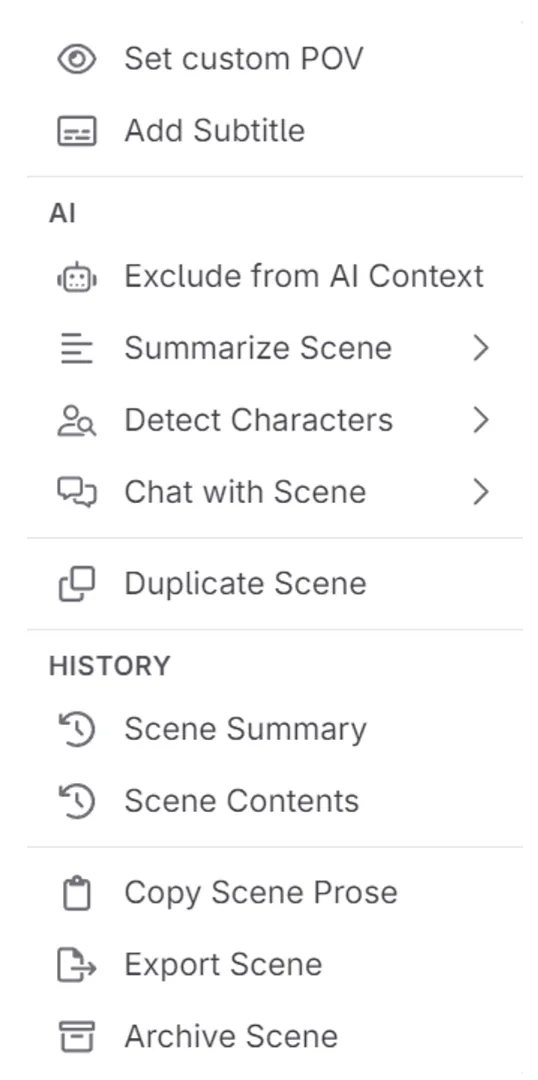
Scene actions menu
To further customize your outline, Novelcrafter provides an action menu. This menu enables you to enable or disable numeration, export or delete items, merge chapters, or split up acts. It’s all about giving you the freedom to mould your story exactly the way you envision it.
But that’s not all! Novelcrafter also allows you to set custom points of view for scenes, which is particularly useful if your story has multiple perspectives. You can even exclude scenes from being included in the AI, making it easy to include non-story related items such as appendices or forwards. To enhance the reading experience, Novelcrafter offers subtitles that can indicate the point of view, time skips, or any other relevant information you want to convey to your readers.
AI Features
If a scene has content you’re worried about moderated models flagging, you can toggle the inclusion of the scene from the AI context here. You can also use this if the scene has placeholder information, or any other reason you may not want the summary or content included in the AI context.
Save yourself work once you’ve finished your chapter by using AI to summarize the scene. By customizing the prompts, you can get comprehensive summaries that give all the information you need at a glance.
You can use AI to detect the characters in a selected scene, perfect for discovery writers who want to know the entries they need to add to the codex.
Finally, you can chat with your scenes, perfect for analysis, editing, or character development.
History
Look at and restore prior versions of the scene contents and scene summary. This feature ensures that you never lose any valuable content or regret any modifications made along the way.
If you archived a scene, and want to later recover it, click on the folder icon in the bottom of each chapter in the plan interface (this doesn’t have to be the chapter the scene was originally archived from).
Export and Archive
Here, you can export the prose as a file, copy the scene prose (i.e. only the main text and any sections, not any beats), or archive the scene in order to replace/delete the chapter.
Act/Chapter actions menus
- Disable numeration. This act or chapter will now no longer count towards the automatic numbering that occurs in the system.
- Copy all beats. Copy all text within beats boxes within the act.
- Copy all prose. Copy all the prose and sectioned text within an act.
- Copy outline/summaries. Copy the scene summaries for all scenes within the act.
- Export act. Export the prose and sectioned text within an act.
- Delete act. If there are no populated scenes (i.e. no text in the summary or interface) then you can delete the act and any chapters within it.
3. Whole novel actions menu
- Copy all prose (writing and content instide sections) to the clipboard.
- Copy all outlines to the clipboard.
- Delete empty scenes. Removes any unpopulated scenes in your novel.