Planning with the Outline View
Focus on your story structure and scene summaries with the Outline View in Novelcrafter.
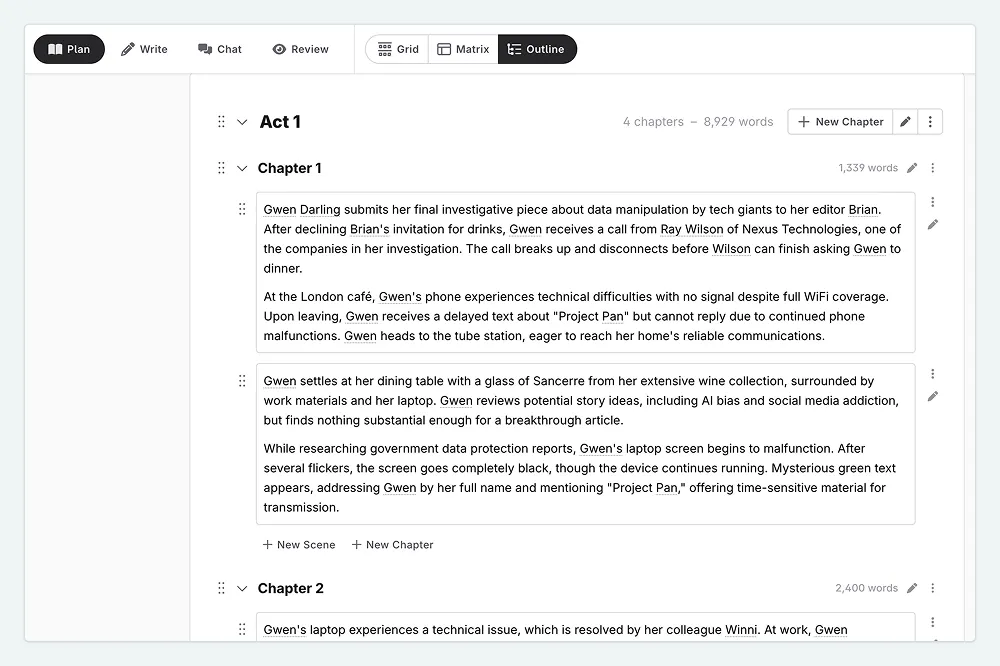
The Outline View is for writers who want to focus on their scene summaries, without distraction. It provides a clear view of your scene summaries, allowing you to focus on the flow of your story.
Whereas the grid view allows you to see your story in a more visual format, the Outline View presents your story in a linear, text-based format. This allows you to focus on the smaller changes.
How Grid and Outline differ
At a first glance, the Outline View might seem similar to Grid, only in vertical mode. However, there are some key differences in its design.
Minimalist Interface: The Outline View offers a clean and uncluttered interface, allowing you to concentrate on your scene summaries.
Larger Scene Summaries: In the Outline View, scene summaries are given larger text boxes, making it easier to read and edit them. You don’t need to scroll to read a full scene summary as the box expands to fit your writing.
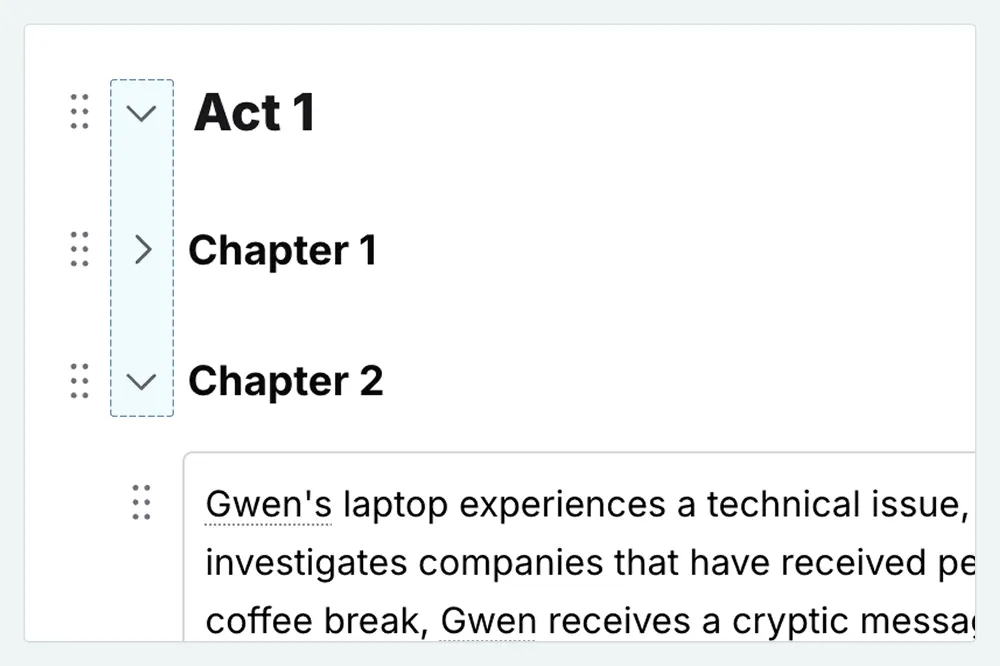
Collapsible Chapters: The Outline View allows you to collapse or expand chapters, giving you a better overview of your story’s structure.
Navigating the Outline View
You can manage scenes, chapters, and acts in the Outline View in the same way as in the Grid View. You can add new scenes, chapters, and acts, as well as rearrange them by dragging and dropping. There are a few exceptions.
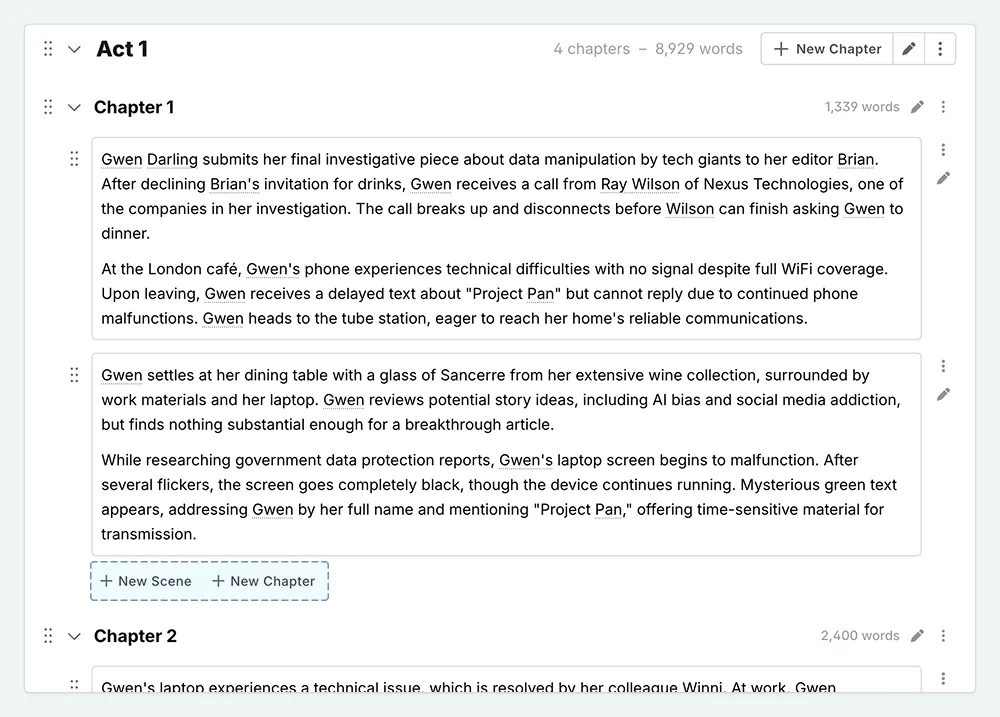
At the end of each chapter, there are separate buttons to add a new scene or chapter. To add a new act go to the actions menu, or click the button at the bottom of the outline.
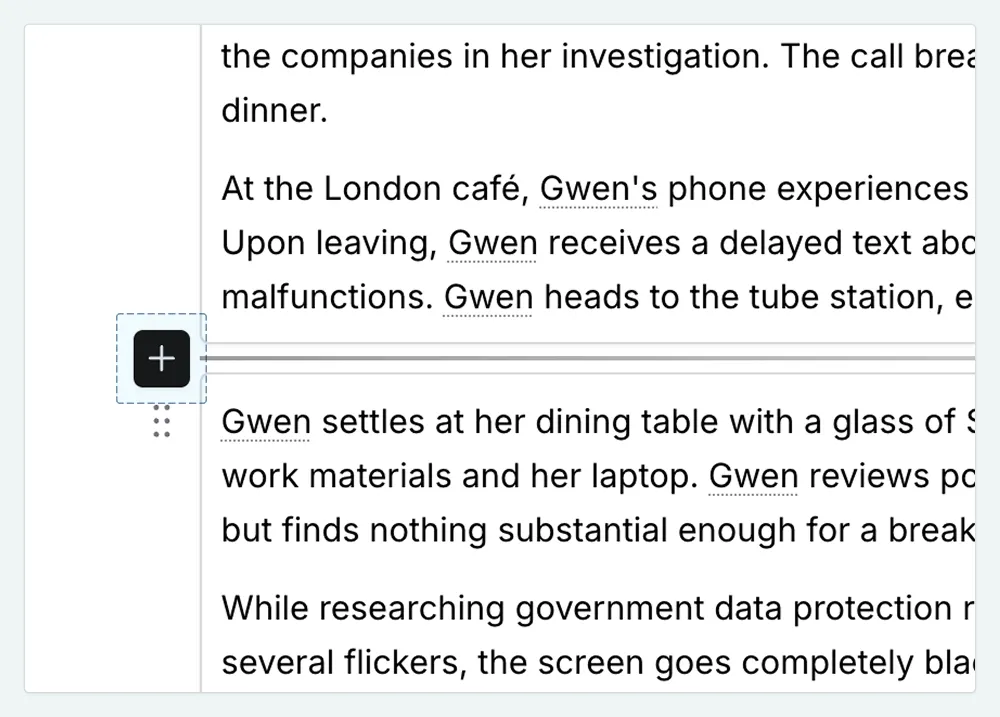
The + button is to the left of the scenes (not between scenes in the middle), allowing you to quickly add new chapters, scenes, or split the chapter. This button only shows when you hover over the space between scenes (on desktop view only).